Compress an AI Image Without Losing the Detail That Matters
Compare six real JPEG, WebP, and PNG exports of one still life, with exact sizes, original files, and unretouched detail crops.
On this page
A useful image export is the smallest file that still preserves what the reader needs to see at its intended size. Choose that size first, compare real encodes from one source, and inspect important details before approving the smaller file. A universal quality number cannot make this decision for you.
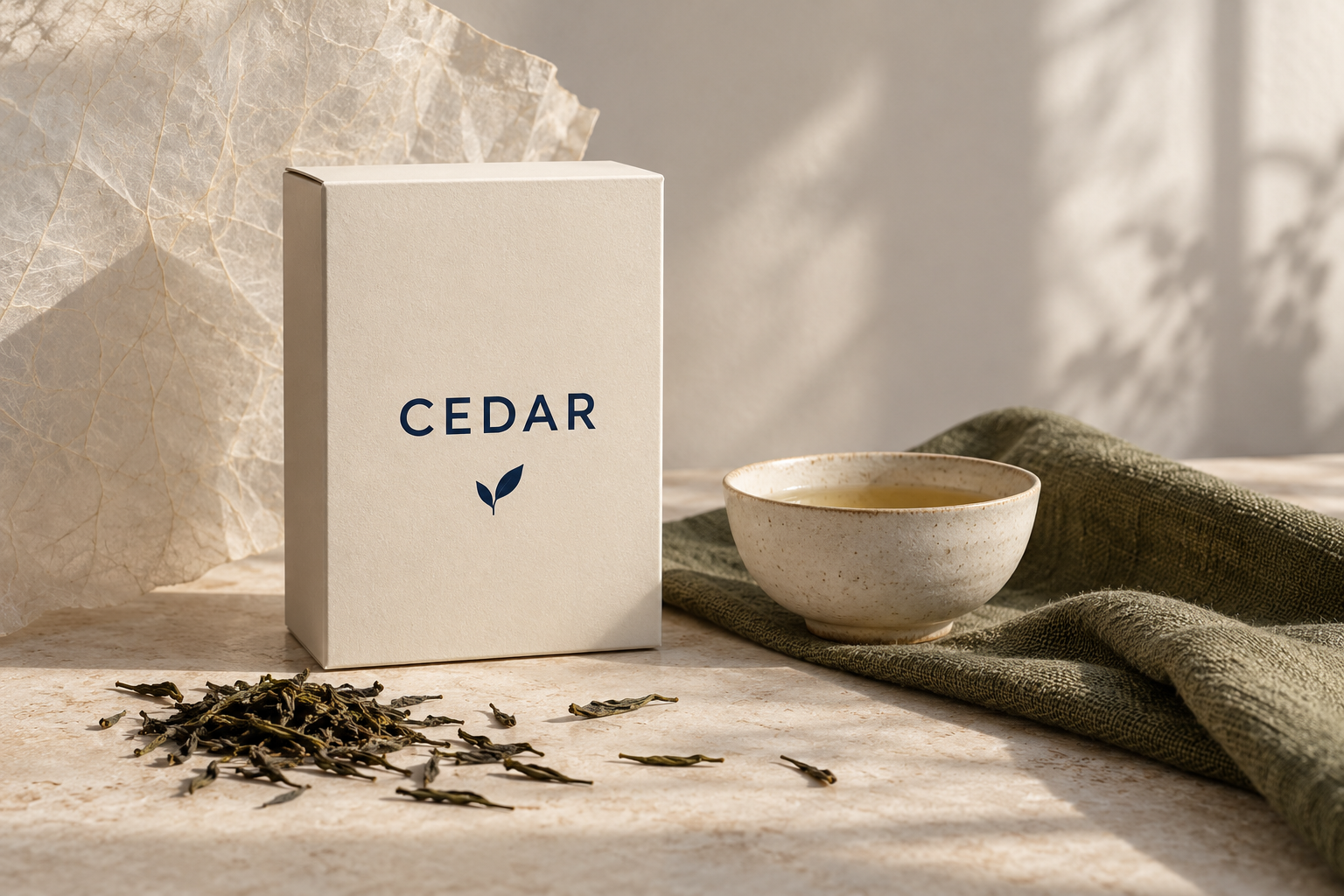
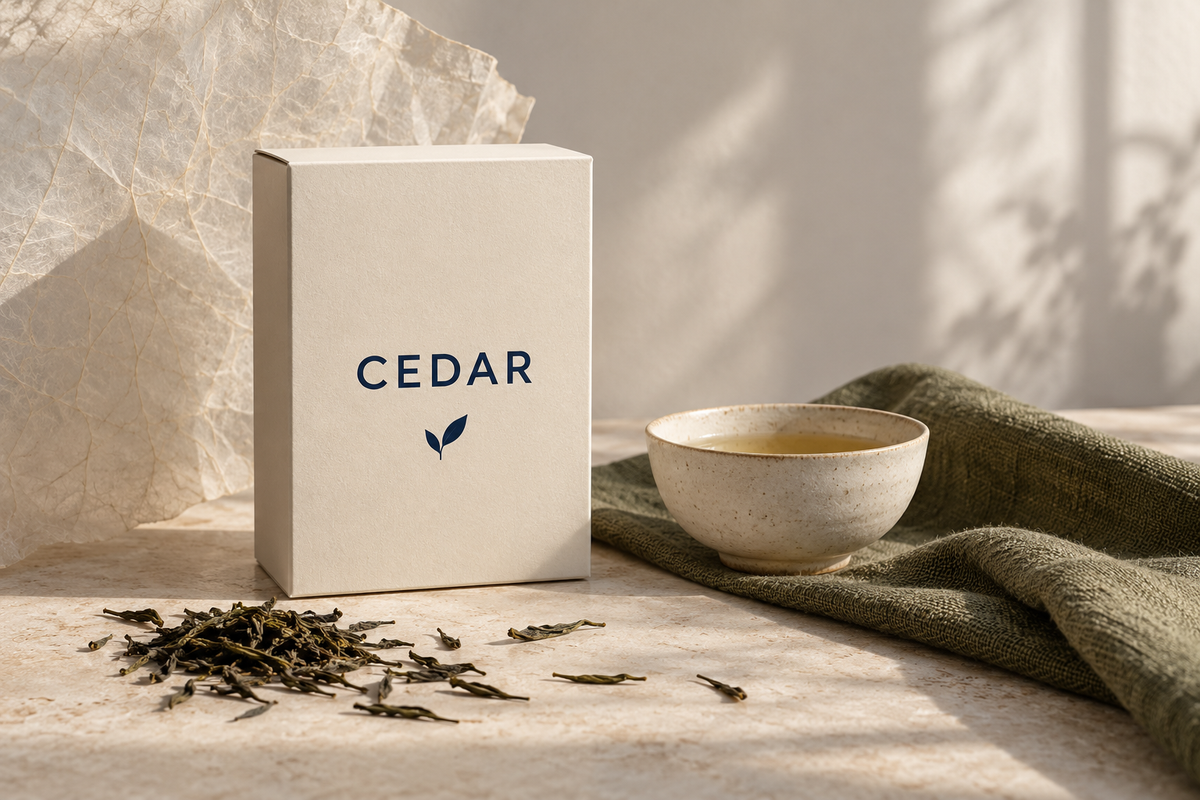
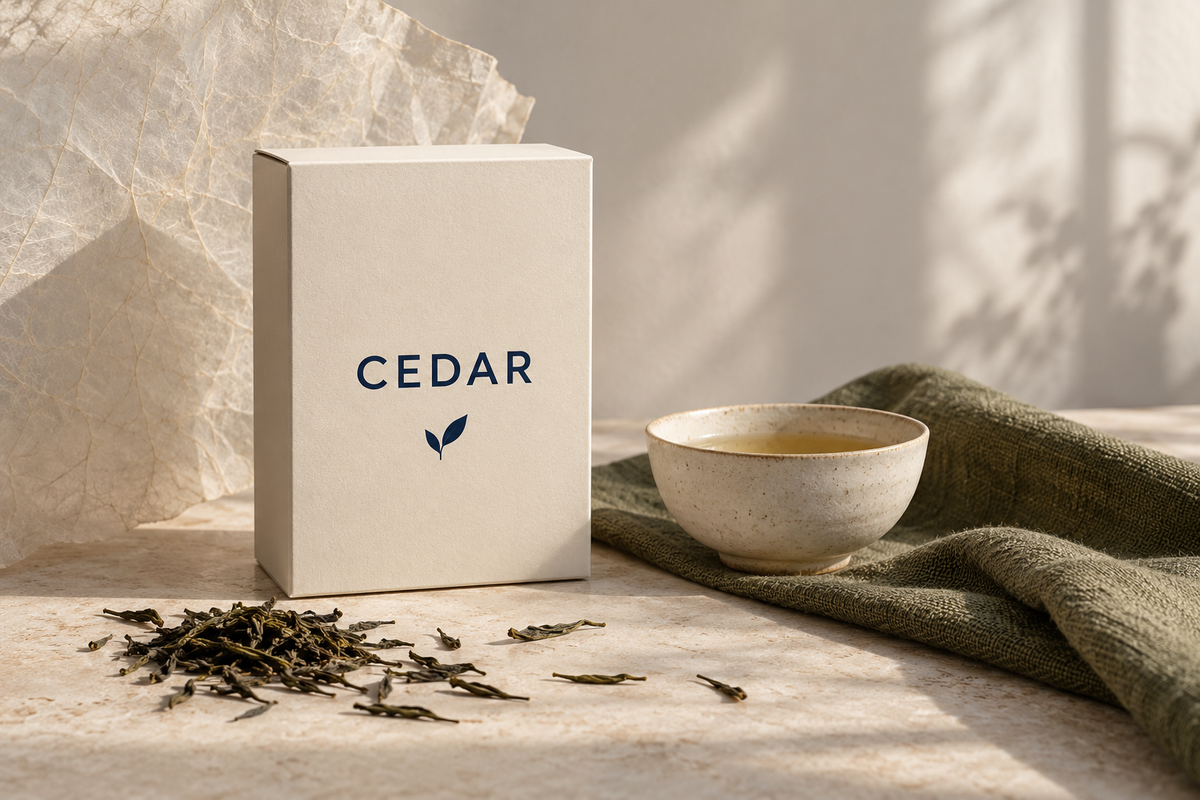
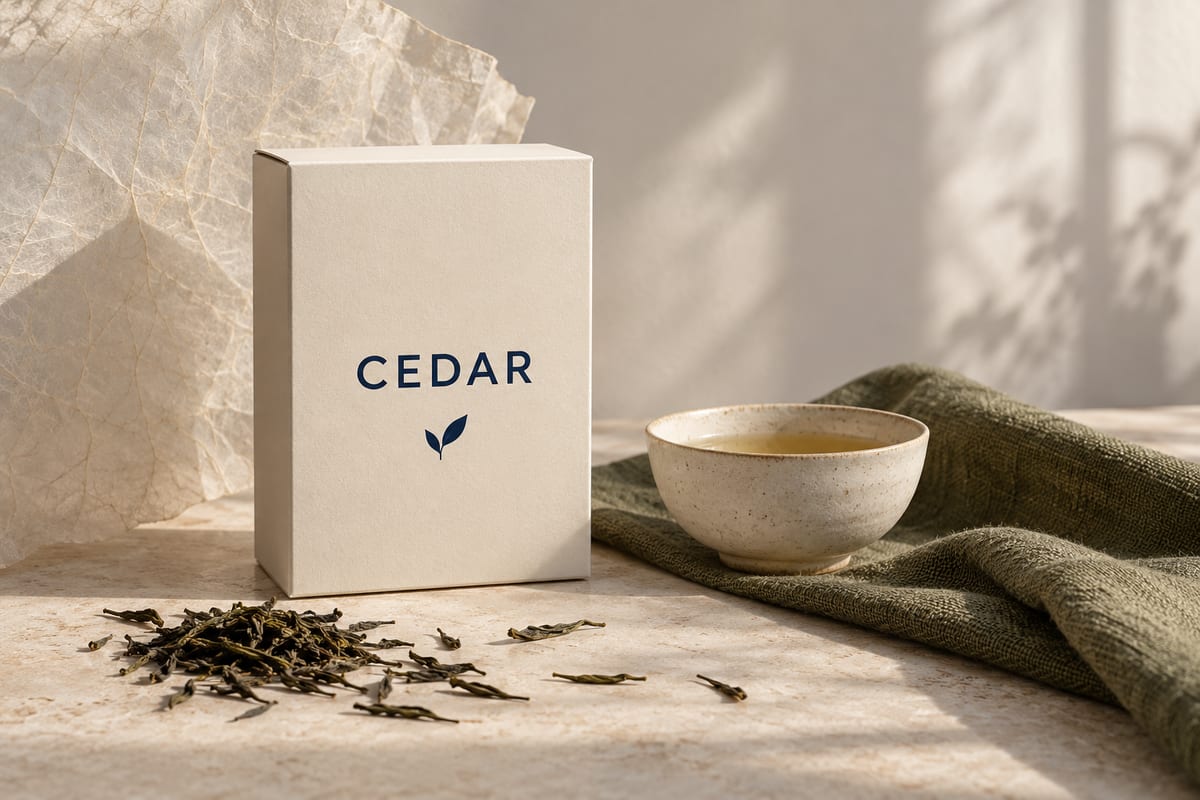
A tea-carton photograph needs readable lettering, believable paper, and a linen texture that still feels woven. Reducing its file size can leave the composition intact while changing all three. A thumbnail is a poor place to detect that change; an enormous zoom can make an acceptable web export look unnecessarily alarming. You need both a delivery view and a detail check.
We made one original AI-generated still life for this guide, then performed a small, reproducible encoding exercise. The scene is fictional; the file sizes, decoded-pixel checks, and crops below are actual results. This is a test of those files, not a ranking of image generators or codecs in general.
Write the delivery brief before opening the quality slider
For this lesson, imagine a website needs the full scene at 1200 × 800 pixels, accepts JPEG or WebP, and sets a budget of 100,000 bytes per image. The label must remain readable, the carton must retain a paper surface, and the cloth should still read as woven material. The file will usually display smaller than its native dimensions. These are exercise requirements, not recommended limits for every website.
Keep the original download outside the output folder. Record its actual dimensions, format, and file size before changing anything. Confirm whether the final placement allows a crop. Our brief requires the entire scene, so removing the linen to save bytes would change the task rather than solve it. It also concerns an opaque image; transparency and animation are separate format requirements.
This written brief separates three questions that are easy to collapse into one: can the destination accept the file, does it fit the limit, and does it still communicate the intended material? A file can pass the first two and fail the third. Decide the last question from the actual scene and placement, not the encoder's quality label.
Separate three ways to make a file smaller
Cropping removes part of the composition. Resizing changes the pixel grid. Encoding stores that grid in a file, with or without changing the pixel values that a decoder reconstructs.
These are different decisions. If a website only needs a small card, retaining an enormous source may be wasteful. If a client needs a full-width banner, cropping to a tiny square is not a successful optimization. Decide the needed composition and dimensions before adjusting compression. The resolution guide explains how display size, file dimensions, and trustworthy detail differ.
Lossless compression can reconstruct the encoded pixel values without change. Lossy compression permits changes to reduce data; those changes may be difficult to see or may damage important features. The format's name is not enough: WebP has both lossless and lossy modes. MDN: image format guide, Google: WebP compression techniques
Saving an already degraded JPEG as lossless PNG does not reconstruct lost texture. It preserves the pixels you currently have. Keep a master before repeated delivery exports.
What we actually encoded
The generated source is 1536 × 1024 pixels. We decoded it once, resized it once with Lanczos3 to 1200 × 800 RGB pixels, and sent the identical raw pixel buffer to six encoder settings. No sharpening, denoising, color adjustment, or extra crop was applied to any candidate.
Every output has the same dimensions. JPEG used MozJPEG with 4:2:0 chroma subsampling; WebP used effort 6. PNG used compression level 9 without palette reduction. No candidate carries an embedded profile or other added metadata; all use the same sRGB interpretation for this exercise. The quality numbers below are each encoder's controls, not an equal-quality scale between formats.
| Export | Actual file size |
|---|---|
| PNG, lossless | 1,924,424 bytes |
| WebP, lossless | 970,870 bytes |
| JPEG, quality 82 | 103,744 bytes |
| JPEG, quality 35 | 35,766 bytes |
| WebP, quality 76 | 65,208 bytes |
| WebP, quality 30 | 30,012 bytes |
The lossless PNG and WebP decoded to exactly the same RGB bytes as the resized reference. Their different sizes show that lossless storage does not require one fixed file size. The lossy candidates did not match those bytes exactly. None of these statements measures how noticeable a difference will be to a particular viewer.
Read the numbers without confusing storage and detail
The resized reference has 1200 × 800 = 960,000 pixels. Three 8-bit RGB channels require three bytes per pixel in this raw buffer, so the buffer contains 2,880,000 bytes. That is the decoded pixel array used in the experiment, not the size every PNG should have. File containers, compression and metadata affect stored size; display software may also use different working buffers.
Against the lossless PNG, the lossless WebP saves 1,924,424 − 970,870 = 953,554 bytes, approximately 49.6% of this PNG's size. We can call that a measured saving for this image. We cannot turn it into “WebP halves every image,” or infer twice-as-fast page loading from it. Network, cache and page behavior were not measured.
Now apply the 100,000-byte brief. JPEG quality 82 exceeds it by 3,744 bytes. WebP quality 76 is 34,792 bytes below it. The two lower-quality files also fit, but fitting the budget is only the first gate. A 100 KiB limit would instead mean 102,400 bytes; confirm which unit the recipient uses rather than relying on a rounded file-manager display.
Download the original generated PNG, resized lossless reference, and encoding manifest. The manifest contains the exact settings, library versions, hashes, crop coordinates, and links by filename. The reproduction script runs with Node.js and sharp 0.35.5; its opening comment gives the command. It is a record of this single image, not a sample of all possible image content.
Repeat the experiment from one source
Put the original PNG and reproduction script in a separate folder. With Node.js available, run:
npm init -y
npm install sharp@0.35.5
node reproduce.mjs tea-original.png encoded
The script reads the source once, resizes to the stated dimensions and writes six candidates plus result.json into encoded. It does not call an image generator. Compare its reported sizes and hashes with the supplied manifest before making visual judgments. Codec-library builds can change encoded bytes; when results differ, record your versions and avoid presenting them as the exact files published here.
The lossless checks compare decoded RGB bytes, not two PNG file hashes. That matters because two differently compressed files can decode to the same picture. Conversely, a lossy file may look very similar at a small size without sharing the reference's decoded values. Neither test replaces the other.
If you use a graphical export tool instead, start every export from the same retained source and use the same final dimensions. Record its settings and identify those as your own runs. Do not expect another application's “76” to reproduce this WebP, or its JPEG “82” to use the same chroma subsampling. The comparison is reproducible only to the extent that its actual encoding conditions are matched.
Inspect edges and texture separately
The following crops take the same 240 × 150 rectangle from decoded outputs. They were saved as PNG without resampling or retouching. The webpage may fit them to the layout; download the candidates for a 100% view in your image editor, checking how it handles display scaling.
The label rectangle begins at (335, 340); the weave rectangle begins at (810, 515), measured from the top-left of each 1200 × 800 file. Using those same coordinates prevents accidentally comparing a sharper part of one image with a softer part of another.


In this label crop, the lower-quality JPEG preserves the word but weakens the finish. That matters for a product hero whose paper stock is part of the visual promise. For a very small listing card, the same defect may be less consequential. The acceptable loss depends on the task.


Texture is a different check from lettering. Compression can retain a large outline while changing the small variations that distinguish fabric, skin, wood, or paper. Google describes lossy WebP's prediction, quantization and filtering; it does not promise that every particular texture will survive a chosen setting. WebP compression techniques
Do not judge the whole image from whichever crop looks worst. Inspect at least one meaningful edge, one material surface, and a smooth area such as the wall. The cloth was already outside the sharpest plane in parts of the generated source, so an existing soft patch is not automatically a compression defect. Compare the same coordinates against the lossless reference before assigning a cause.
Likewise, avoid sharpening only the compressed version for the comparison. That would test a new processing chain. If sharpening is part of the intended delivery, apply and document that chain separately, then judge the resulting file on its own merits. Preserve the original six files so the initial encoding comparison remains inspectable.
Make the delivery decision at the delivery size
For a hypothetical article image displayed around 676 CSS pixels wide, we would start by trying the 65,208-byte WebP at quality 76, then compare it with the reference in the actual layout. The full photograph retains the intended subject and label, but close inspection still reveals texture loss. This is an editorial starting choice for this scene, not a visually lossless certificate.

If the linen finish is the subject of the page, raise quality or use a less destructive export. If compatibility with a recipient's software matters, try the 103,744-byte JPEG at quality 82 there. If exact decoded pixels are required, use the lossless WebP or reference PNG and verify support. Also available are the deliberately smaller JPEG quality 35 and WebP quality 30 for your own comparison.
Check a candidate in this order: the actual layout size, a 100% detail view, then the smallest important use such as a phone card. For a high-density display, the relationship between CSS size and source pixels changes; include the intended device and responsive image behavior in that check. Avoid deciding from a chat thumbnail that may have been re-encoded again.
Use different acceptance criteria for different jobs
For the hypothetical 100,000-byte article placement, WebP quality 76 is eligible on size and format. It still needs the material and label review. Write the reason for accepting it in visible terms: the word remains clear at placement size, the paper still looks like paper, and the cloth still reads as cloth. “It scored 76” explains none of those judgments.
For a textile-detail page, individual threads may be the content the reader came to inspect. Use the reference and higher-quality candidates there; a file suitable for an article illustration can be unsuitable for material inspection. If no candidate meets both the quality requirement and the byte limit, report that conflict. Negotiate a larger budget or a separately approved detail crop rather than silently removing necessary information.
Also check the requested resolution. A 600-CSS-pixel placement at device pixel ratio 2 corresponds to 1200 device pixels across; a 1200-CSS-pixel placement at the same ratio corresponds to 2400. Our 1200-pixel file cannot supply 2400 distinct source columns. Upscaling changes the grid, not the already measured compression result. MDN: devicePixelRatio
Deliver the file you actually reviewed
Export each candidate from the retained master rather than from the previous lossy candidate. Keep the chosen format, dimensions and settings with the delivery copy. Reopen it, confirm its file size and check the label, texture, smooth wall and silhouette.
After upload, inspect the actual served image as well. A publishing platform may create another size or encoding, so a good local export does not prove the delivered page uses those same bytes. Color changes also deserve a separate investigation; the color-profile guide explains why an ICC profile is not simply disposable metadata.
When the result disappoints, use the failure to choose the next check:
| Failure | Check before exporting again |
|---|---|
| Text looks soft only on the page | The served file, displayed dimensions and scaling, compared with the local candidate |
| The file is unexpectedly large | Whether you changed pixel dimensions, selected lossless mode, or exported a different source |
| Texture deteriorates after several revisions | Whether each export started from the master or from a prior lossy copy |
| A different format has the same file size | The actual decoded details; equal bytes do not establish equal quality |
For example, if the local label crop is clear but the uploaded preview is soft, another lower-quality export is not the first remedy. Retrieve the served file and compare its dimensions and pixels with the file you approved. If they differ, investigate that processing stage. If they match, examine how it is displayed. This avoids repeatedly degrading a good source while trying to fix a separate delivery problem.
Check your decision with three small exercises
The uploader accepts only files below 100,000 bytes. Which candidates qualify? JPEG quality 35, WebP quality 76 and WebP quality 30. Qualification says nothing yet about which one preserves the required material. JPEG quality 82 is close but fails this exact limit; rounding it to “about 100 KB” does not change its bytes.
A lossless PNG is larger than a lossless WebP. Must it contain more detail? No. Here the decoded RGB buffers are identical. The difference is storage, as verified by the equality check. Do not infer quality from file size without examining what was encoded.
You open the small JPEG and save it as PNG. Have you restored the reference? No. You have stored that JPEG's decoded result in a lossless container. To recover this exercise's reference pixels, return to the retained source or reference file, not a different filename extension.
An acceptable handoff therefore has three receipts: the file that fits the destination, a note identifying its dimensions and encoding, and an inspection against the task's meaningful details. Keep those decisions attached to the chosen output so a later editor does not accidentally replace it with a smaller but unsuitable version.
The useful final question is specific: does this exported file retain the details this placement needs, at a size the destination can use? That question leads to a defensible delivery choice; “quality 80 for everything” does not.